Widget blocks (product & feed)
What they are
Unlike the floating widget, which overlays every page, blocks are placed inside a page's layout — right where you drop them. ShortsWorks adds two blocks through the theme editor's Add section — Product widget and Feed widget.
The two blocks
| Product widget | Feed widget | |
|---|---|---|
| Where it goes | Product pages only | Any page (home, collection, …) |
| What it shows | Shorts auto-matched to the product being viewed | Content from the preset/group you pick |
| Goal | Turn a product view into a purchase | Draw shoppers into your content |
- Product widget only appears on the product page template. Its Product linking setting defaults to This page's product, so it automatically shows only the shorts tagged with that product — no manual product picking.
- Feed widget is independent of any product. It shows whatever preset or group you point it at — a story row on the home page, a feed at the top of a collection, and so on.
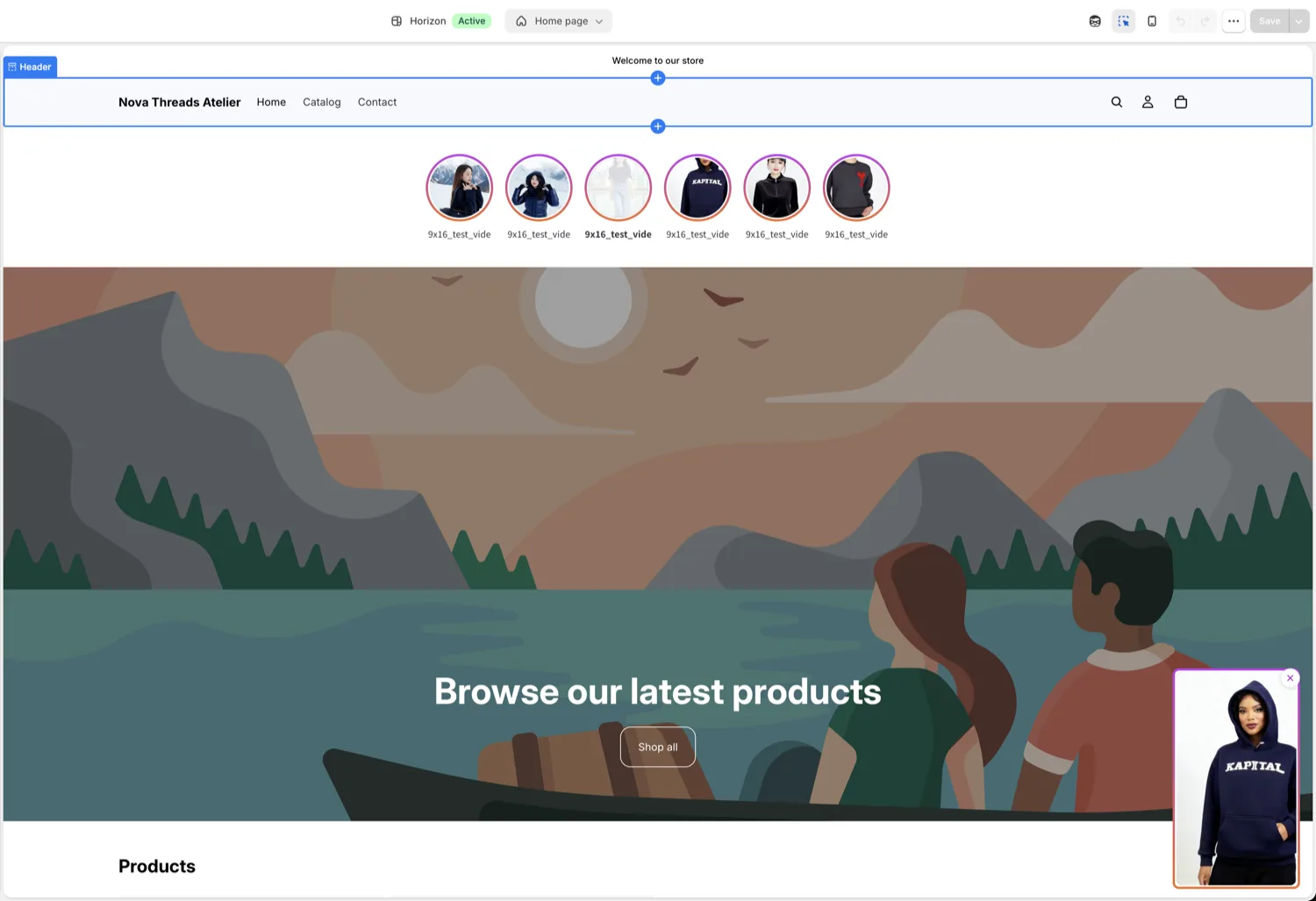
In the store home below, the circular row right under the header is a Feed widget block (the bottom-right overlay is the floating widget).
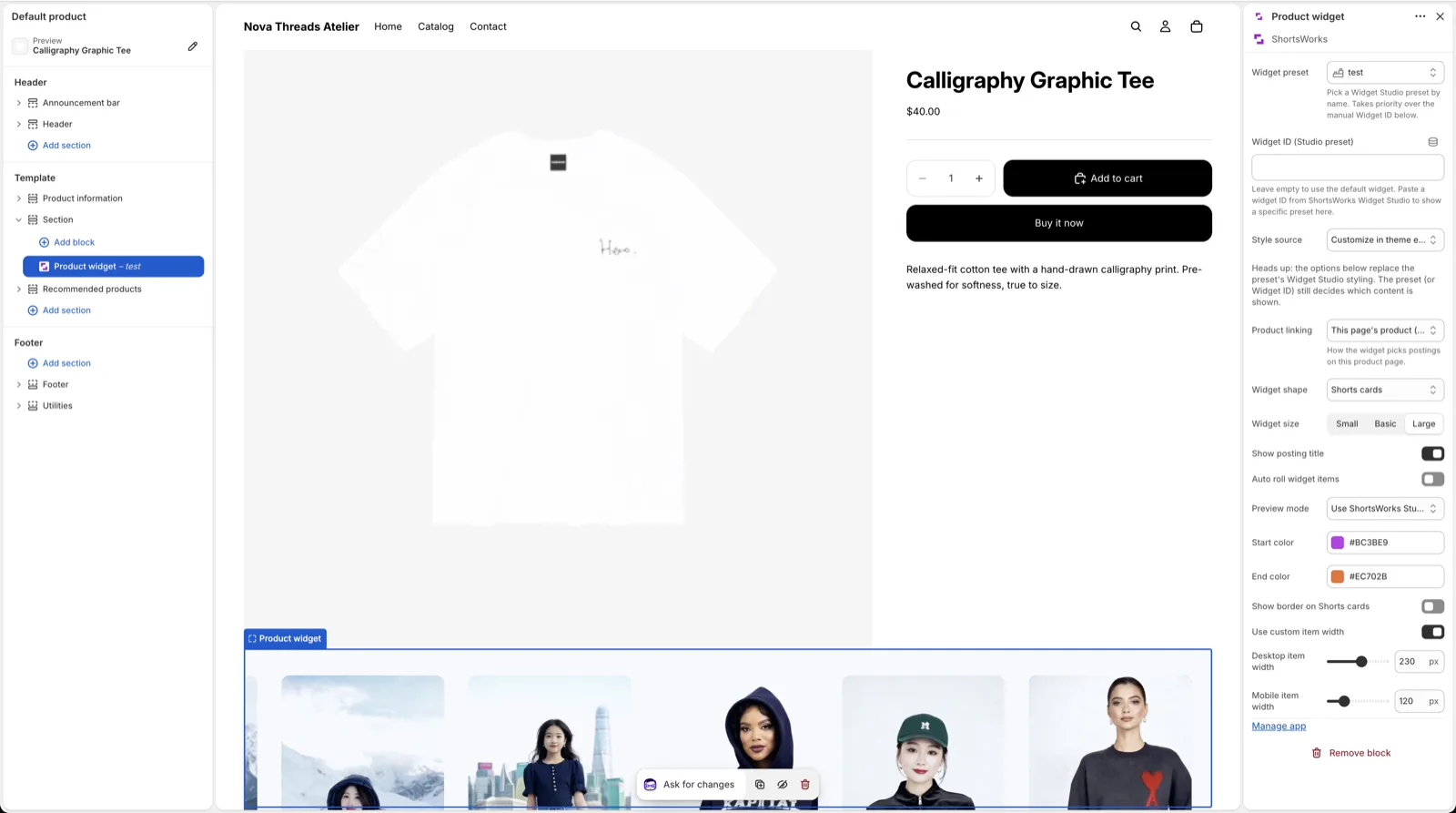
Here's a Product widget on a product page — a row of shorts cards below the product details, with Product linking → This page's product matching it to the current product.
Add a block
- Go to Online Store → Themes → Customize.
- At the top, switch the template to the page you want — Home page, Product page, etc.
- Click Add section and search ShortsWorks.
- Product page: Product widget
- Home / collection page: Feed widget
- Drag the block to the position you want.
- In the settings on the right, set Widget preset / Widget ID (leave empty for the default widget).
- Click Save.
Block settings
Both blocks share the same settings.
| Setting | What it does |
|---|---|
| Widget preset / Widget ID | Point at a Widget Studio preset. The preset takes priority. |
| Product linking (Product widget) | Which product's shorts to show. Defaults to This page's product. |
| Style source | Follow the preset's style, or override it with the values below. |
| Widget shape / size | Story or Shorts, and size. |
| Show short title / Auto rolling / Preview mode | Title, auto-rolling, and preview behavior. |
| Border colors / Show shorts border | Brand-color border with start and end colors. |
| Custom item width (Desktop / Mobile) | Set card widths yourself. |
Floating vs. blocks — which one?
- Floating widget — one pinned overlay, site-wide, always visible.
- Blocks — placed in the layout. Product widget (auto-matched) on product pages, Feed widget on the home page.
Most stores run a floating widget and blocks together.