Drafts and preview
TIP
Save a short as a draft to review it once more before publishing.
The "Add details" step
The last screen before publishing. Set the thumbnail, toggle Short Title, set a Label, Display Period, and Group, or save it as a Draft — then publish.
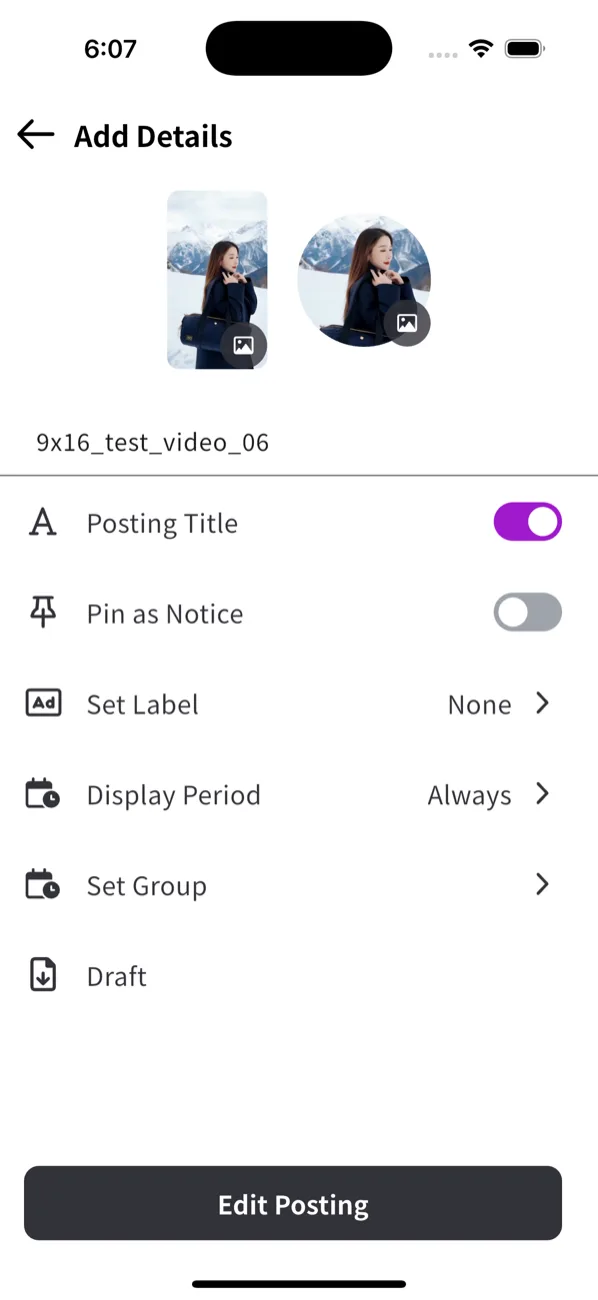
Preview with the draft feature
- Before uploading, tap Save draft in the “Add details” step.
- The short is saved as a draft.
- Find it in the Drafts tab on the app home.
- Review each short.
- Check the rest of the shorts.
- Check the last short too.
- When you're happy, switch the short from Draft to Publish.
- Confirm the published short in the Shorts tab on the home screen.