Shorts
Library vs. Shorts
The Library is where all your imported content is kept; Shorts are the pieces that are actually published to a storefront widget. Clicking Add to Short on a Library card turns that content into a Short so it shows up in your widget.
The Contents tab manages the widget content that's live on your store, grouped by status.
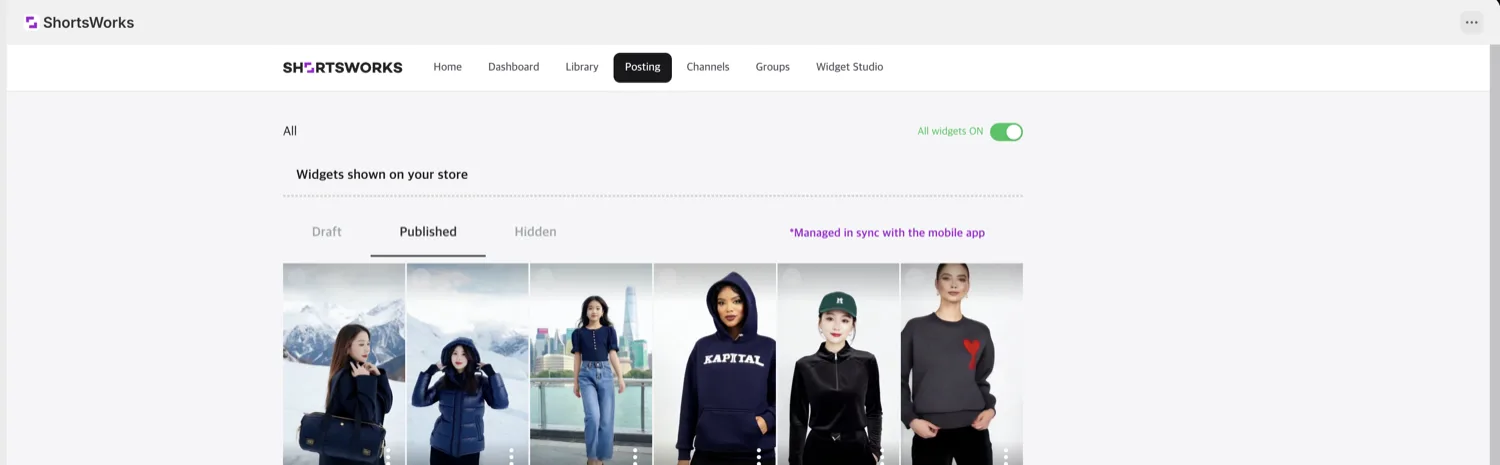
Manage by status
| Tab | Meaning |
|---|---|
| Published | Content currently live in your store's widgets |
| Draft | Being prepared — not shown yet |
| Hidden | Temporarily taken down (hidden, not deleted) |
Change a card's status, or adjust its publish order and the groups it appears in. Instead of deleting, you can move content to Hidden and bring it back later.
Per-short actions: tag products, thumbnail & more
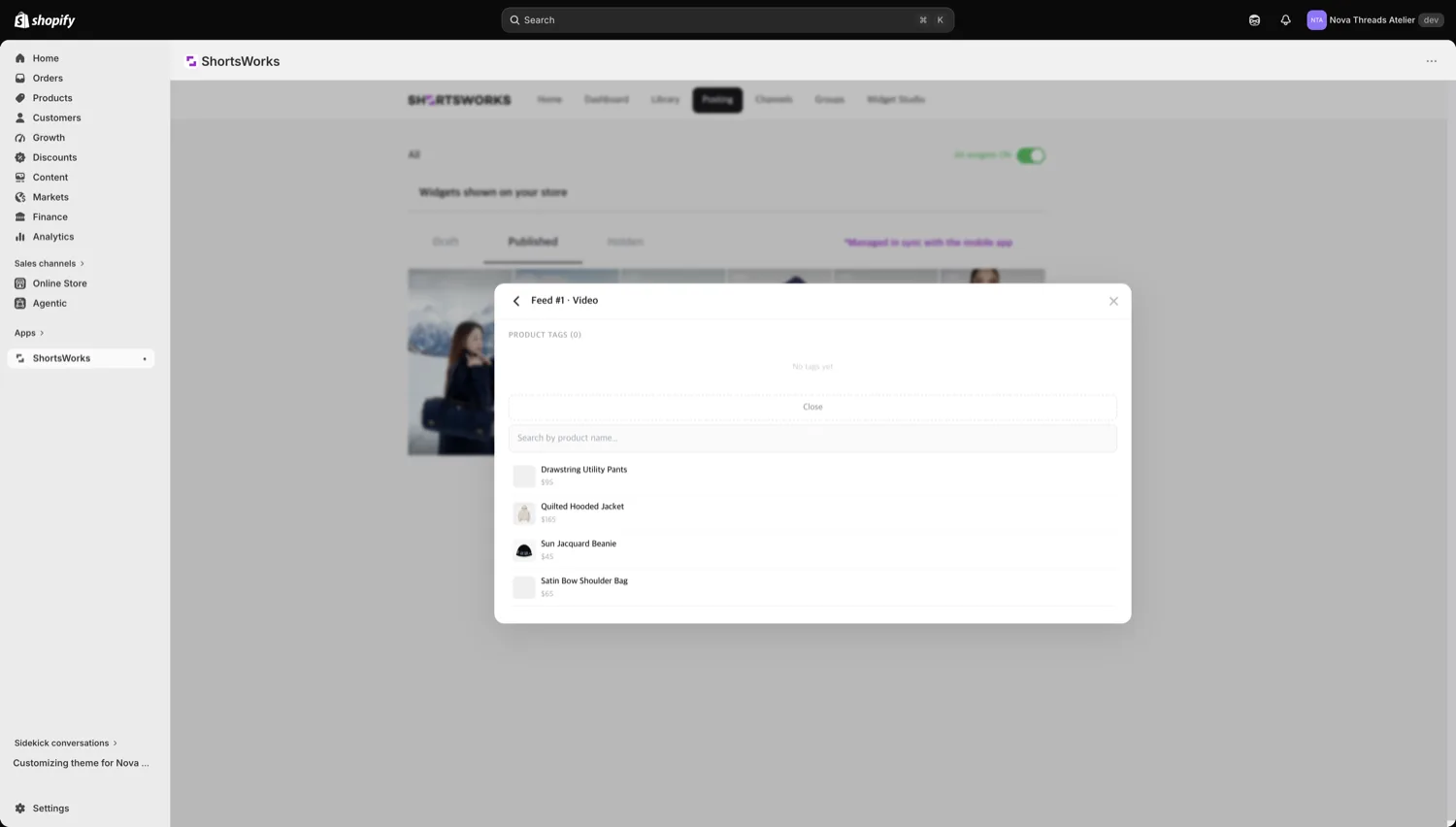
Open the ⋮ menu on any short card for its actions — Edit short title · Tag products · Change thumbnail · Save as draft · Hide · Delete.
Tag products is how you attach store products to a video from the web. Click + Add product, search your Shopify catalog, and pick the items to tag — they show up as shoppable tags on the video in your widget.
All widgets ON / OFF
The All widgets ON toggle at the top right turns every widget on your store on or off at once — handy when you need to pull everything down briefly, e.g. during maintenance.
Synced with the mobile app
Shorts stay in sync with the mobile app in real time. Content you shoot, upload, or publish from the app shows up here, and status changes you make here are reflected back in the app.
The flow
Library (import & keep) → Add to Short → Shorts (published to storefront widgets). Which content appears in which widget is set in Widget Studio and Groups.