The ShortsWorks app in Shopify
Almost everything except theme placement happens in the app embedded in your Shopify admin — Apps → ShortsWorks. Seven tabs run across the top: Home · Dashboard · Library · Contents · Channels · Groups · Widget Studio.
Home
The first screen when you open the app. It shows your last-7-day performance and your setup progress at a glance.
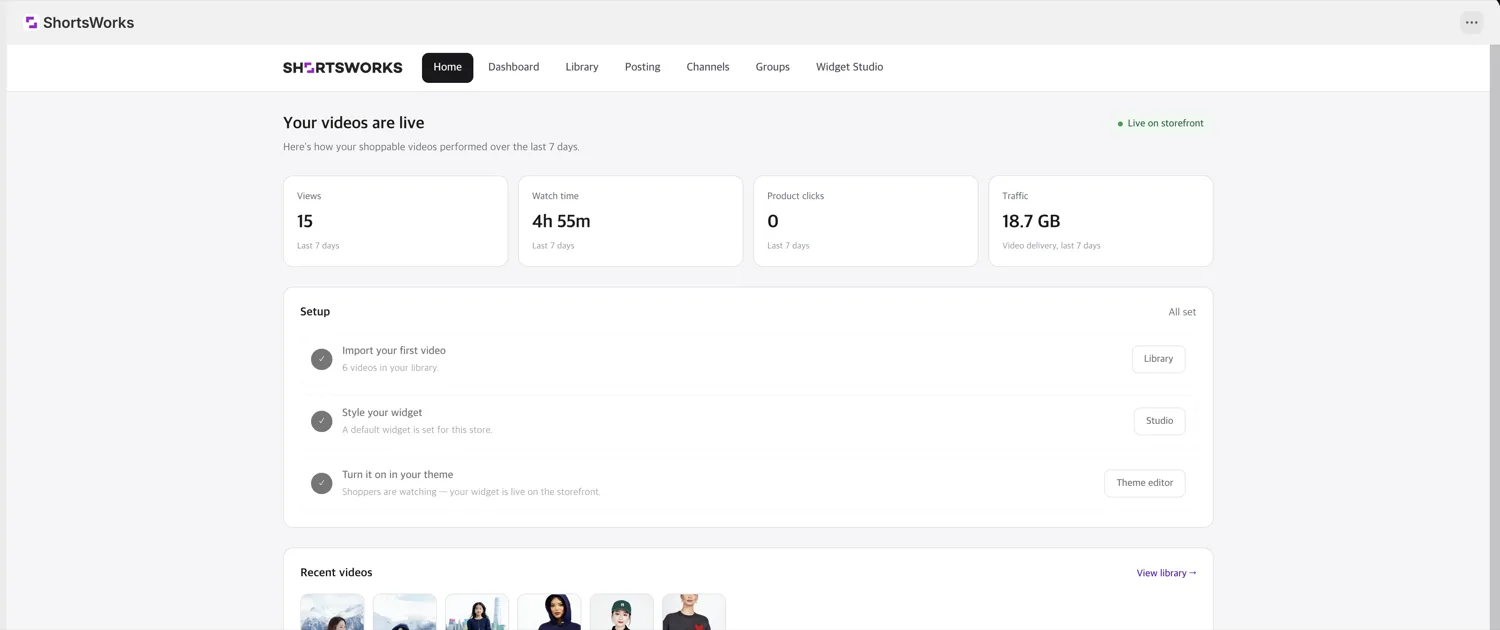
- Performance cards — Views · Watch time · Product clicks · Traffic (last 7 days). The Live on storefront badge (top right) confirms your widget is showing.
- Setup checklist — ① Import your first video (→ Library) ② Style your widget (→ Studio) ③ Turn it on in your theme (→ Theme editor). All set when all three are done.
- Traffic this cycle — data used against your plan for the current billing cycle, plus the spend cap on paid plans. See Pricing on Shopify.
- Recent videos — your latest content, with View library →.
- Sign in on your phone — issues a one-time code (QR + 10 characters) for signing in on the mobile app. See Signing in on the mobile app.
Dashboard
A detailed look at content performance. See Analytics for what each metric means.
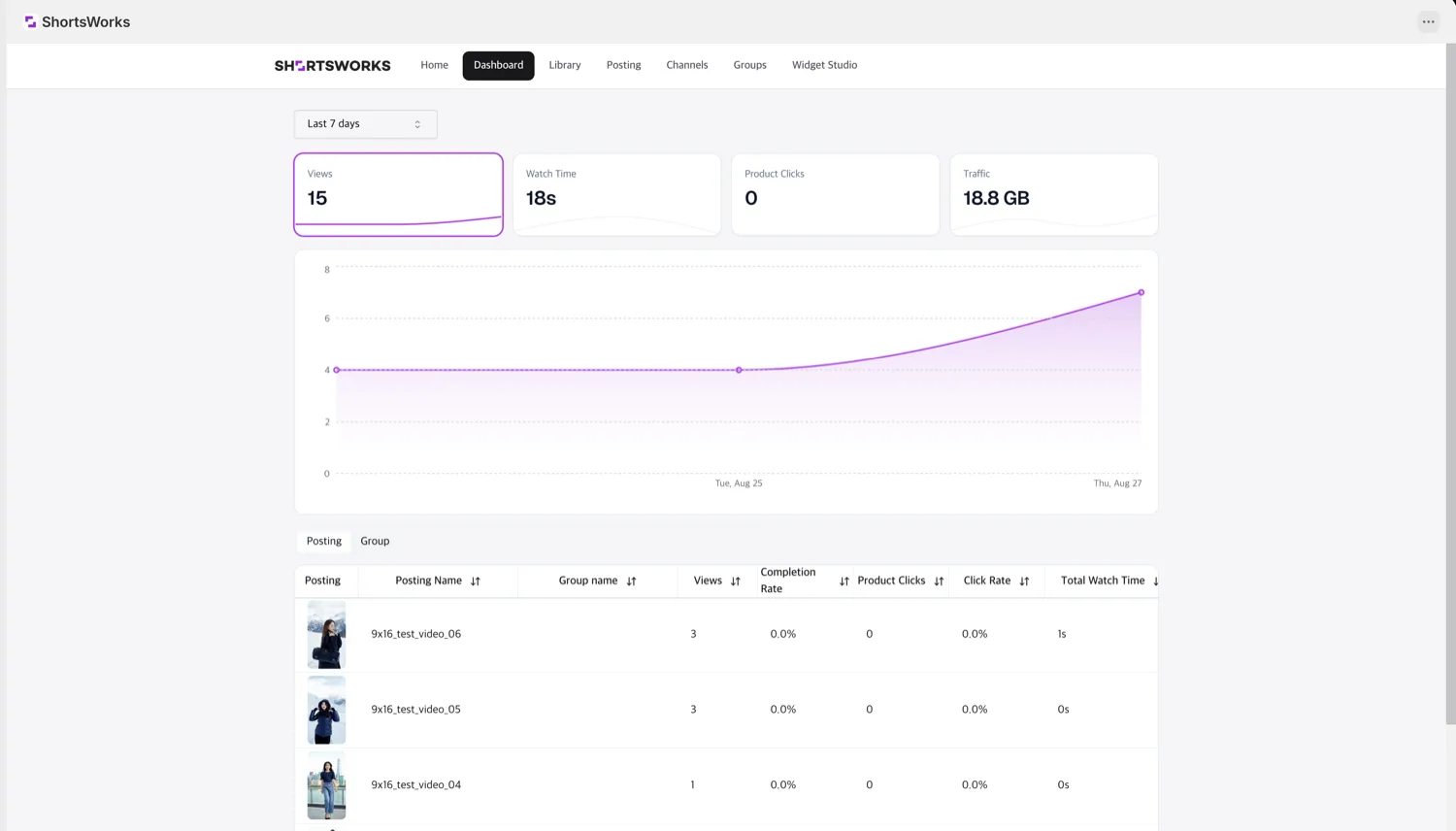
- Date range (e.g. Last 7 days), metric cards, and a trend graph.
- Contents / Group tabs give a per-short and per-group table: views, completion rate, product clicks, click rate, total watch time.
Library
Bring content in with social URL import and video upload. See Library.
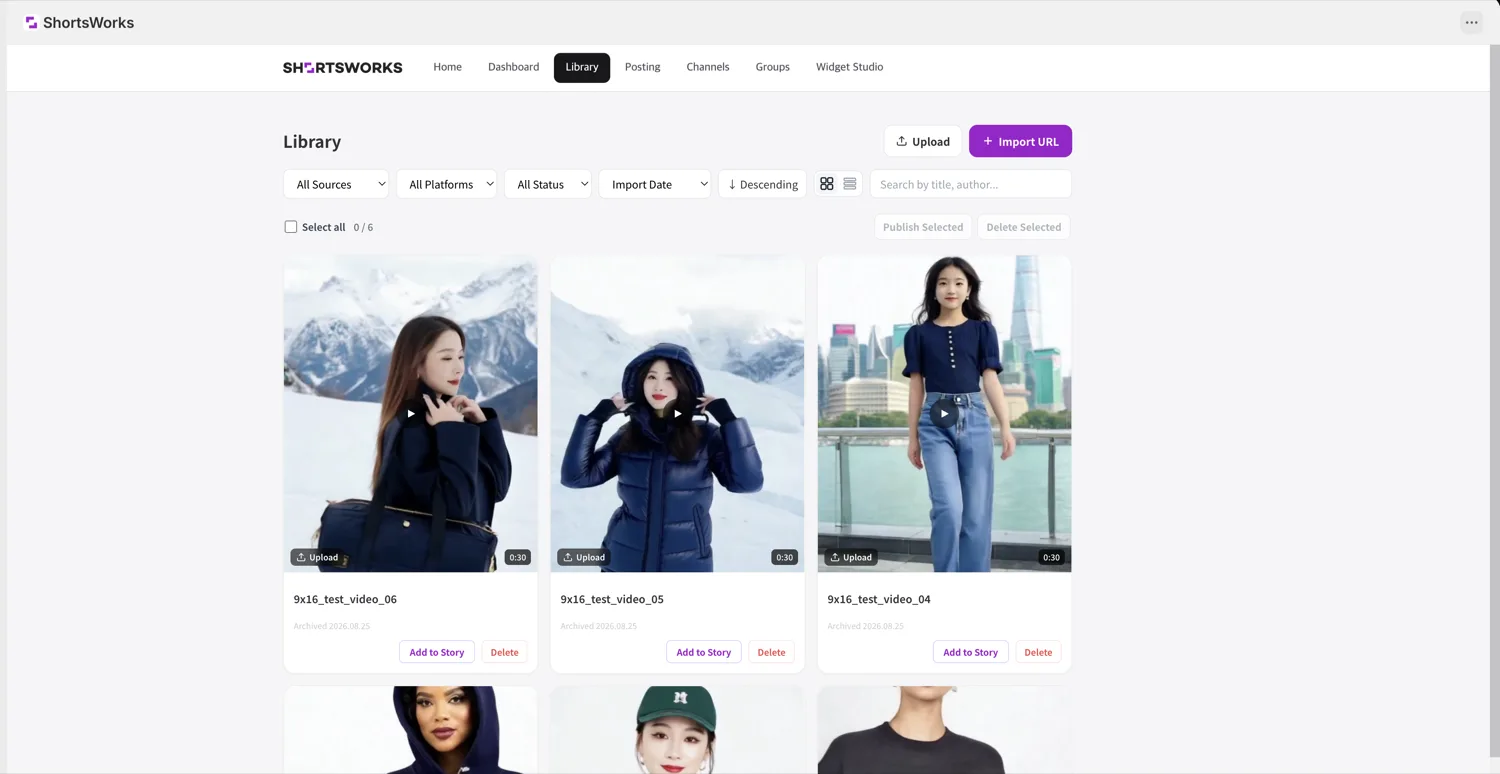
- Upload / Import URL (top right) to add content.
- Filter by source, platform, status, and import date; search by title/author; switch grid/list.
- Each card has Add to Short (publish) and Delete; select several to publish or delete at once.
Contents
Manage the widget content shown on your store.
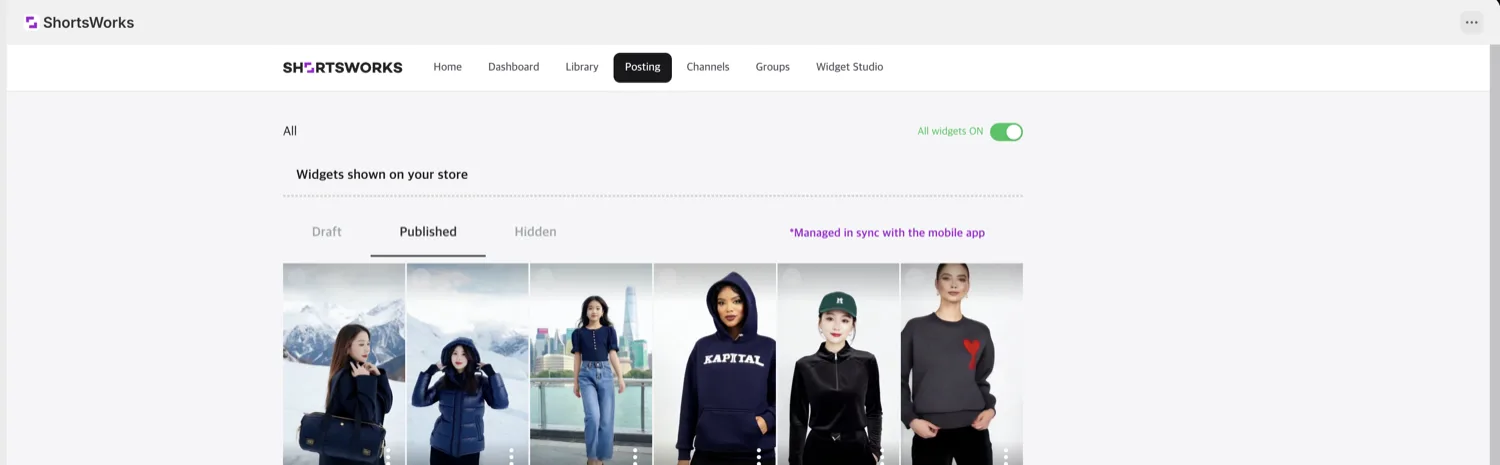
- All widgets ON — turn all storefront widgets on or off at once.
- Draft · Published · Hidden tabs. It's kept in sync with the mobile app, so anything you post from the app appears here.
Channels
Subscribe to a social account to auto-collect new content. See Channel subscriptions.
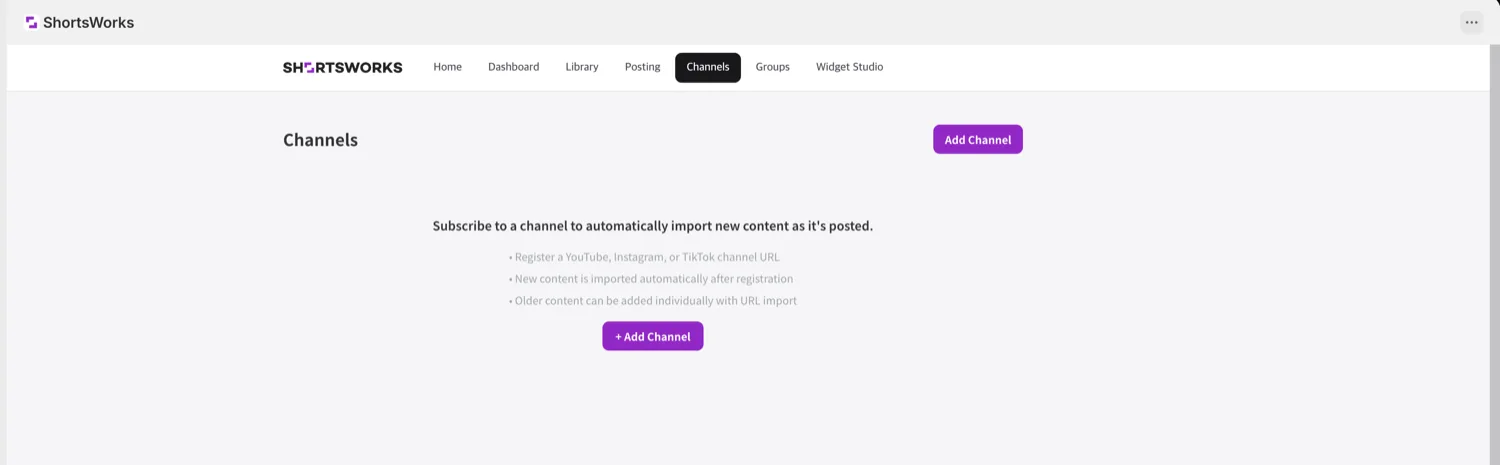
- Add Channel to register a YouTube · Instagram · TikTok channel URL. New content is imported into your library automatically after that.
Groups
Group content so a widget can show just one set. See Managing groups.
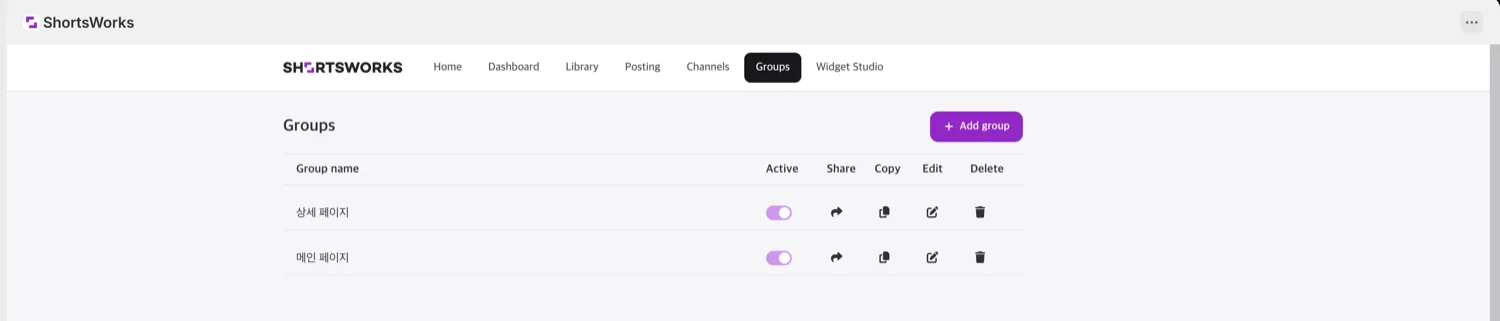
- Per-group Active toggle, Share · Copy · Edit · Delete, and Add group.
Widget Studio
Build reusable widget presets. See Widget Studio.
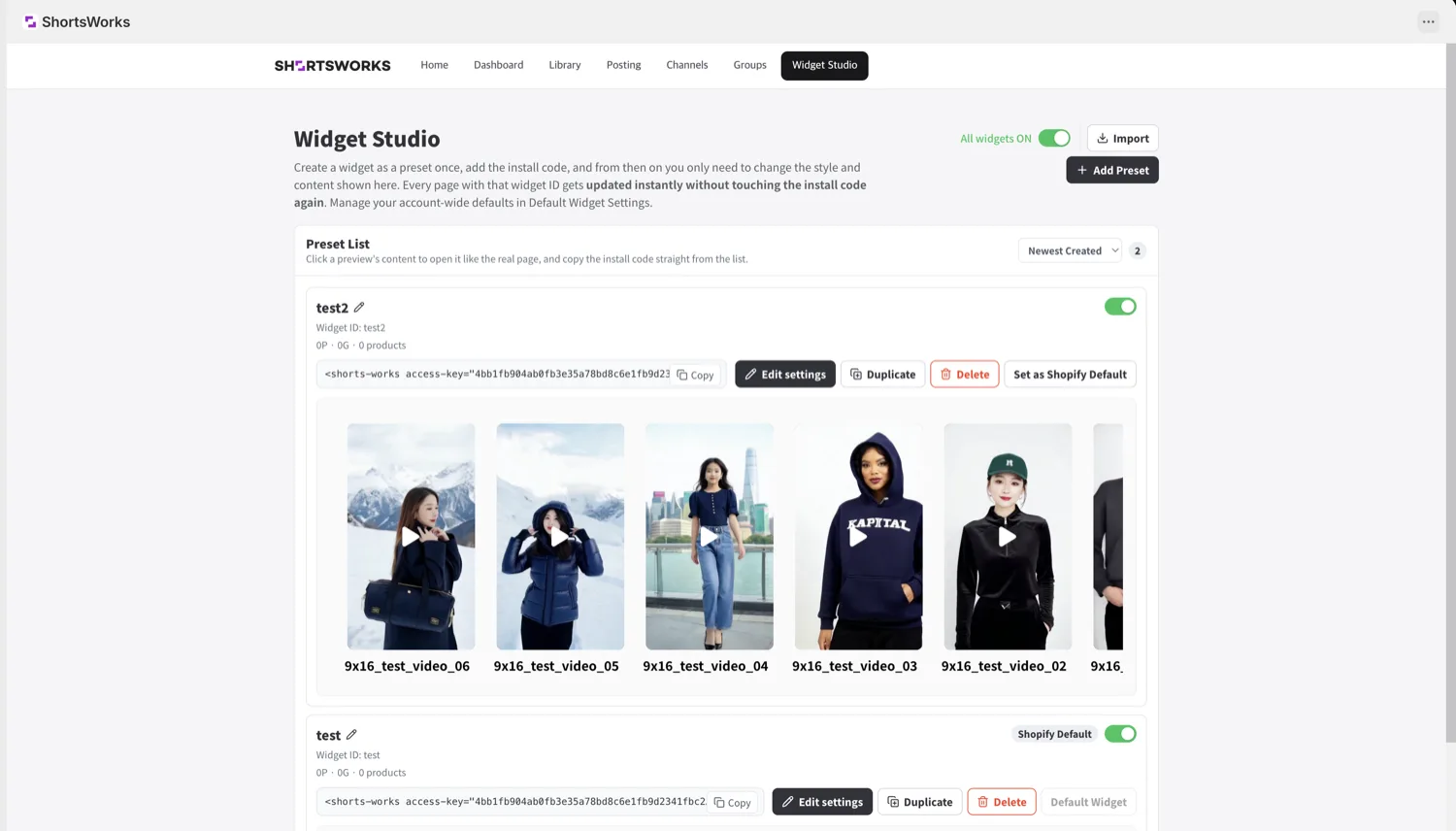
- Each preset shows its Widget ID and install code (
<shorts-works …>), with Copy · Edit settings · Duplicate · Delete. - Set as Shopify Default (Shopify-only) — makes that preset your store's default widget. A floating widget or block left without a Widget ID uses it.
- Add Preset for a new one; Import to bring in existing code.
The Shopify difference
- No connection step — installing the app links your store. No access key, no script tag, and no sign-up form: your account is created on first open.
- Placement is in the theme editor — the floating widget and blocks live under Online Store → Themes → Customize.
- Set as Shopify Default picks your store's default widget.